 Docnest
这一页还没有翻译,先显示英文版。
Reading and review
The shelf at a glance
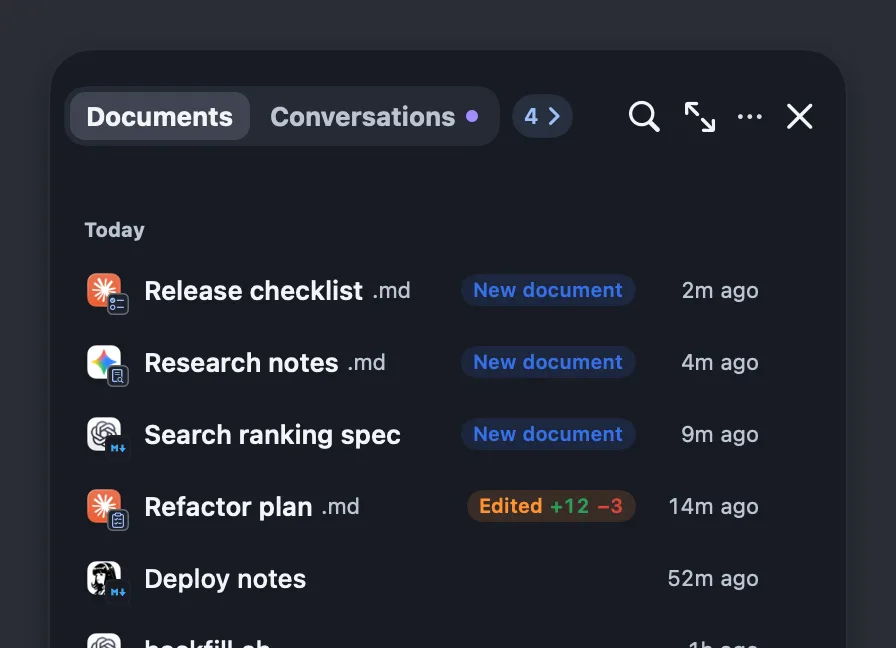
Each row on the shelf is one document: the AI that wrote it, the title, the time and a tag.
| Tag | Meaning |
|---|---|
| New document | A file an agent created. |
| Edited +12 −3 | An agent changed a document you already have: 12 lines added, 3 removed. A zero is left off, so a change that only adds lines shows Edited +12. |
Rows are grouped into Today, Yesterday, This week and Earlier.
Read a document
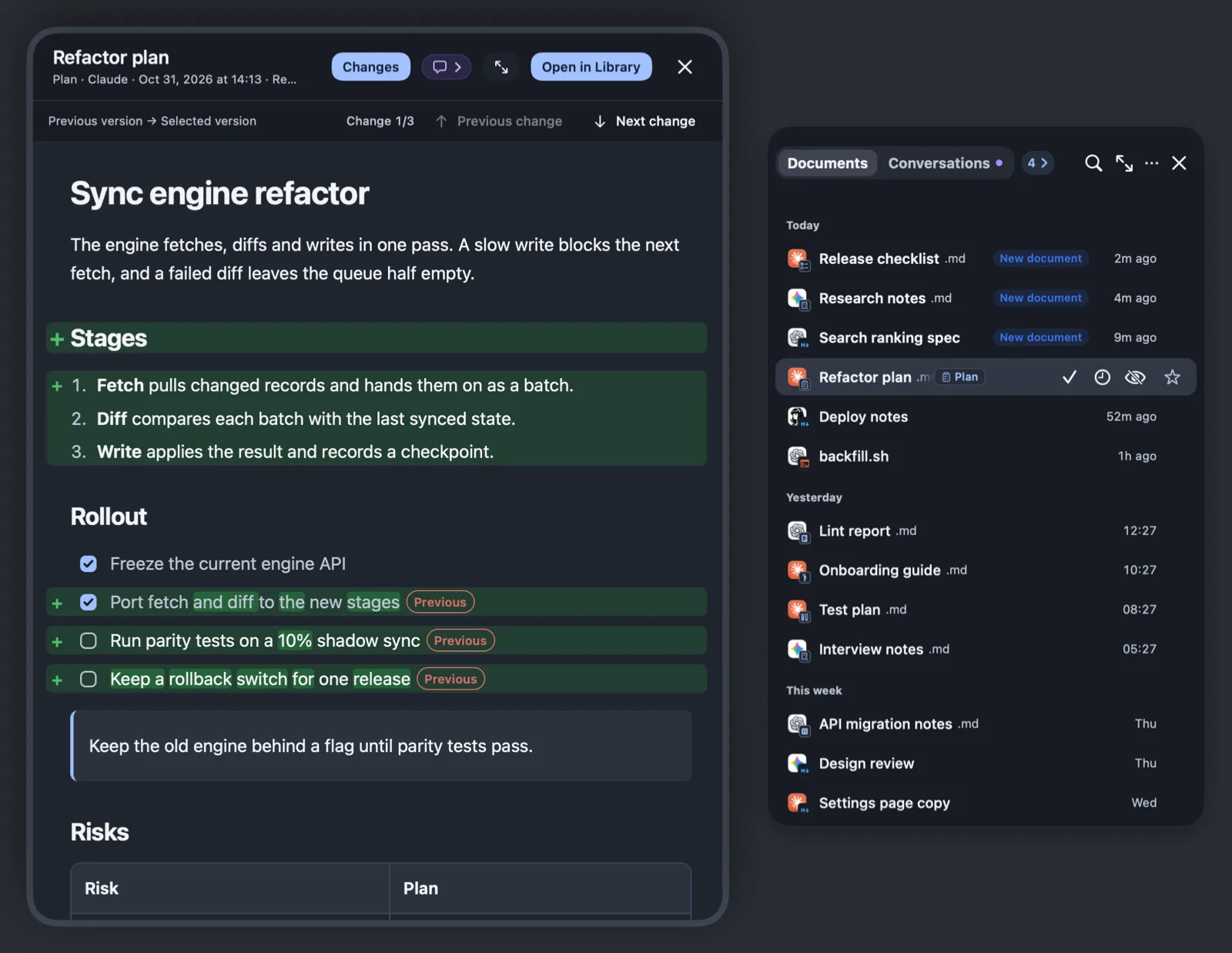
Click a row to open the document in a window beside the shelf.
- In the library, long documents are split into pages. Use the arrows to move between them.
- Widen reading area gives the text more room.
- If the document has several versions, drag the Revision 2 of 3 bar in that wider view to step through them.
- Changes marks what changed in place: added lines in green, removed lines in red. A document tagged Edited opens with it on.
- Source conversation › opens the conversation that produced this document. See Agent conversations.
Opening a document counts as reading it. Its tag disappears and it leaves the count.
Keep it or clear it
Hover over a row, or select it with the arrow keys, and three sorting buttons and a star replace its tag and time.
| Action | Button | Gesture | Key | What happens |
|---|---|---|---|---|
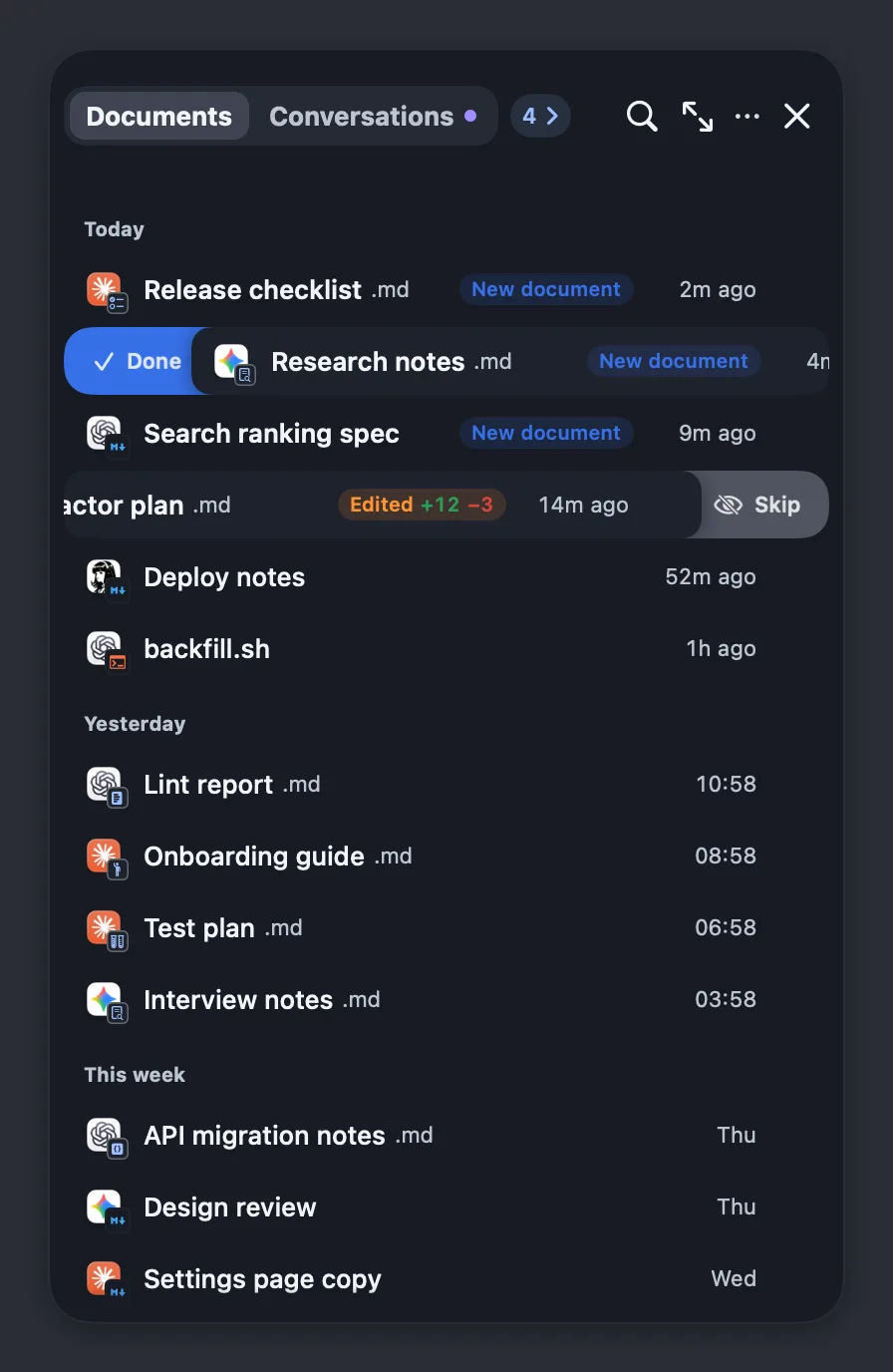
| Done | Check mark | Swipe right | → or 1 | The row stays on the shelf without its tag. |
| Read later | Clock | None | 2 | The row leaves the shelf and is listed under Read later in the library. It comes back tagged Back again after 1 day. Choose Read later again and the wait grows to 3 days, then 7. |
| Skip | Crossed-out eye | Swipe left | ←, ⌫, ⌦ or 3 | The document leaves the shelf. It stays in the library and comes back if an agent edits it again. |
The star is separate. Save (⌘D) keeps a copy of this version under Saved documents in the library and doesn't sort the document.
Nothing is deleted. After Done, Read later or Skip, a short Undo appears. To clear a whole group at once, use Skip all.
Documents you haven't sorted leave review when a new review period starts, every Monday by default. To keep them until you sort them, set Settings → Review & summaries → Clear pending reviews to Keep pending. Your documents and Read later choices stay either way.
Review layouts
The blue count at the top of the shelf (4 › in the pictures here) is how many documents are waiting for review. Click it to go through them on a review screen.
Review layout sets how they appear: One at a time (the default) shows one large document at a time, and Grouped view gathers them by AI and session. Switch it from the bar at the top of that screen or in Settings → Review & summaries.
Summaries
Review cards show a short summary. Summary and Original switch between it and the full text.
- On a Mac with Apple Intelligence, the summary is written on the Mac itself (Written by Apple Intelligence on this Mac).
- Otherwise Docnest takes it from the document by fixed rules (Taken from the document by fixed rules).
Either way, nothing is sent anywhere.
Reviewing many documents
Open the library and choose Review (⌘3) to sort many documents at once. Select rows, then choose Done (⇧⌘↩), Read later (⇧⌘L) or Skip (⇧⌘⌫). You can sort up to 5,000 at a time. Undo review (⌥⌘Z) reverses the last choice.