 Docnest
Diese Seite ist noch nicht übersetzt und wird auf Englisch angezeigt.
Getting started
What you need
- A Mac with macOS 15 Sequoia or later.
- At least one AI tool that writes files on your Mac, such as Claude Code or Codex. See Supported AI tools.
You don't need an account, a sign-in or an API key.
1. Install
- Open Docnest.dmg.
- Drag Docnest into Applications.
- Open Docnest from Applications.
Docnest lives in the menu bar. Look for its icon, an outlined letter D. It has no Dock icon unless the library is open.
2. Answer one question
On first launch, Docnest opens a window called Read agent session records.
- Allow: Docnest reads the session records that Claude Code, Codex, Gemini CLI and Hermes leave on your Mac. That tells it which AI wrote each document, wherever the file is saved.
- Don’t Allow: Docnest still collects documents by watching your project folders, but it can only guess which AI wrote them, so the source shows as estimated or unknown.
What Docnest keeps: file paths, the session, the model, the working folder and the time. It reads commands and tool results only in memory, to tell sources apart, and doesn't keep them. If you use agent conversations, Docnest keeps short excerpts from the last 7 days on this Mac, with anything that looks like a secret masked. Nothing leaves your Mac.
You can change your answer any time in Settings → Capture → How Docnest collects. If you close the window without answering, Docnest asks again at the next launch.
3. Work as usual
There's nothing else to set up. Docnest collects what your agents write after you install it. Files that were already there aren't added to review.
By default it collects documents, plans and images. PDFs, code and other formats stay off until you turn them on in Settings → Capture → Formats.
Docnest follows your agent sessions. When a session writes a file, Docnest collects it wherever it's saved. It also watches the folders that session works in until 10 minutes after the session stops.
4. Find the shelf
New documents arrive on the shelf. You can open it in two places, at the top of the screen and at the side, and both are on by default (Settings → Display → Capture windows: Top and side).
| Place | How to open it |
|---|---|
| Side | Move the pointer to the right edge of the screen. A small status tab shows how many sessions are active and how many documents are waiting. |
| Top | Click the Docnest icon in the menu bar. |
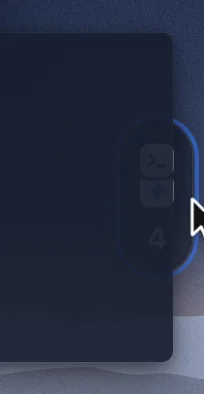
Right-click the menu bar icon for a menu with Open shelf, Open library, Settings… and Quit Docnest, among others.
Next
- Reading and review
- Troubleshooting if the menu bar icon isn't visible