 Docnest
這一頁尚未翻譯,暫時以英文顯示。
Settings and shortcuts
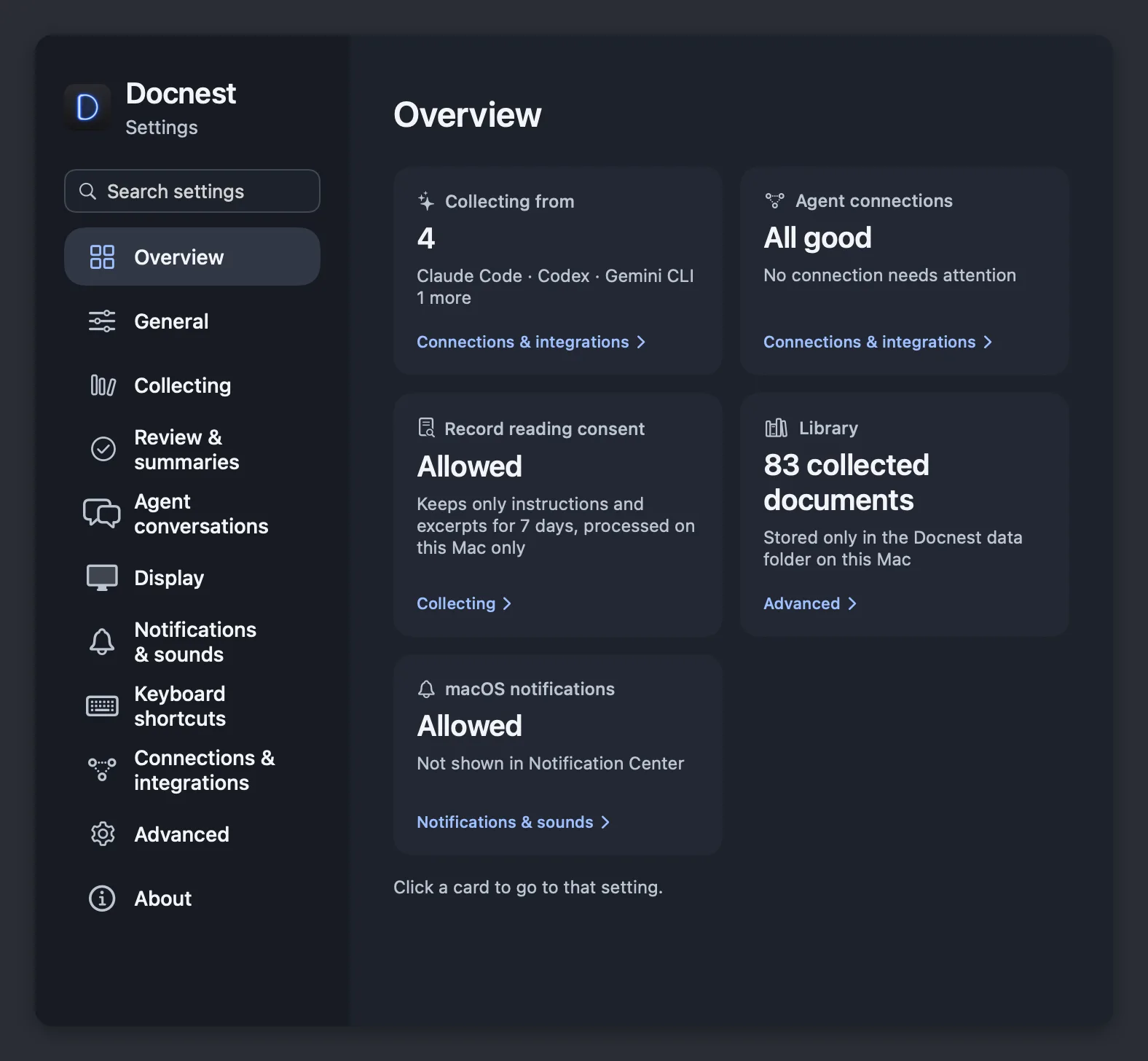
Choose Settings… from the menu bar icon or from Shelf options (…) on the shelf. While a Docnest window is active, ⌘, opens settings too. The search field at the top finds any setting, and you can search in any of the app's 10 languages. Less-used options are under More on each page.
| Page | What's there |
|---|---|
| Overview | Which AIs are being collected, connections, record-reading consent, the library, notifications. Click a card to jump to its setting. |
| General | App language, Launch at login, how the shelf closes |
| Collecting | How Docnest collects, projects and folders, formats, app outputs, a collection test |
| Review & summaries | Review layout, summaries, Clear pending reviews |
| Agent conversations | Show agent conversations, subagent sessions, temporary documents in conversations |
| Display | Theme, menu bar icon, where the shelf appears, document icons |
| Notifications & sounds | Shelf alerts, macOS notifications, sound |
| Keyboard shortcuts | The shortcut list |
| Connections & integrations | Connect AI tools, Save from chat apps |
| Advanced | Diagnostics, cleanup of old data |
| About | Version, data and privacy, Uninstall |
Display: where the shelf appears
| Setting | Options |
|---|---|
| Show menu bar icon | On by default. When off, you can still open the shelf from the screen edge. |
| Screen edge | Left or Right (default) |
| Vertical position | Top, Center (default), Bottom |
| Display | Follow the macOS main display, or keep the shelf on one display |
| Always show the status tab | When it's off, the side tab hides while nothing is happening, and new documents still show a small cue. |
| Open on hover | How long the pointer rests at the edge before the shelf opens |
| Theme | Light, Dark or System |
The shelf opens when you rest the pointer at the edge and vertical position you chose above. Clicking the menu bar icon shows your session, review and document counts, followed by Open shelf, Open library, Settings… and Quit Docnest. With the icon off, Shelf options (…) on the shelf has Settings… and Quit Docnest. If you opened the shelf from a menu or shortcut, it's pinned and this button shows a pin.
General: how the shelf closes
These settings decide when the shelf closes or stays out of the way:
- Collapse after pointer leaves
- Close with Escape
- Close on outside click
- Hide in full screen
- Reduce auto-expansion while working, which keeps the shelf from expanding for new documents while Codex, Claude or Cursor is in front. It's on by default.
Notifications & sounds
These options are off until you turn them on.
- Expand for new documents opens the shelf when a document arrives. When it's off, a small cue appears instead and the shelf opens on hover.
- Show in Notification Center sends new documents and the session alerts you choose to macOS Notification Center as well as to the shelf. They need your permission first: click Request permission on the same page and allow it when macOS asks.
- Session completion alerts tell you when an agent session finishes. Notify about document updates tells you when a document you already have changes.
- Remind me about documents to review reminds you about unread documents at the interval you pick, from 1 minute to 1 hour.
Sound
Docnest uses one Notification sound for new documents, completed sessions and review reminders. It's set to None until you choose Gentle glass, Soft completion, Gentle alert, Glass tone or Clear signal. You can also set the Volume.
Keyboard shortcuts
⌃⌥⌘O works anywhere unless you've turned it off or another app uses it. The others work while a Docnest window is active. Settings → Keyboard shortcuts (⌘/) lists them too, except the keys used on the shelf.
Docnest
| Action | Keys |
|---|---|
| Open shelf from anywhere | ⌃⌥⌘O |
| Open library | ⌘O |
| Open shelf | ⇧⌘O |
| Settings… | ⌘, |
| Keyboard shortcuts | ⌘/ |
| Toggle navigation panel | ⇧⌘F |
| Close navigation panel | Esc |
You can turn ⌃⌥⌘O off with Open the shelf from anywhere with ⌃⌥⌘O in Settings → Keyboard shortcuts. If another app already uses that shortcut, Docnest tells you there.
Library views
| Action | Keys |
|---|---|
| Documents | ⌘1 |
| Conversations | ⌘2 |
| Review | ⌘3 |
| Find a document | ⌘K |
| Search | ⌘F |
Review
| Action | Keys |
|---|---|
| Open selected document | ⌘↩ |
| Done | ⇧⌘↩ |
| Read later | ⇧⌘L |
| Skip | ⇧⌘⌫ |
| Save | ⌘D |
| Undo review | ⌥⌘Z |
Review inbox
| Action | Keys |
|---|---|
| Select all | ⇧⌘A |
| Clear selection | ⇧⌘D |
| View together | ⇧⌘C |
| Previous page / Next page | ⌥⌘← / ⌥⌘→ |
On the shelf
| Action | Keys |
|---|---|
| Documents / Conversations | ⌘1 / ⌘2 |
| Move between rows | ↑ ↓ |
| Done | → or 1 |
| Read later | 2 |
| Skip | ←, ⌫, ⌦ or 3 |
| Save | ⌘D |
Uninstall
Dragging Docnest to the Trash leaves its hooks and data behind, because macOS doesn't tell the app it's being removed. Use Settings → About → Uninstall Docnest Completely… instead. It removes what Docnest added to your AI tools, the login item, the data folder and caches, then moves the app to the Trash. Nothing is permanently deleted, so you can still restore items from the Trash.