 Docnest
หน้านี้ยังไม่ได้แปล จึงแสดงเป็นภาษาอังกฤษ
The library
The shelf shows what just arrived. The library holds everything Docnest has collected.
Open the library
- Press ⌘O while a Docnest window is active.
- Right-click the menu bar icon and choose Open library.
- On the shelf, choose Open in Library or View all in library.
While the library is open, Docnest shows a Dock icon. The library opens on the last document you read, so you can pick up where you left off.
Find a document
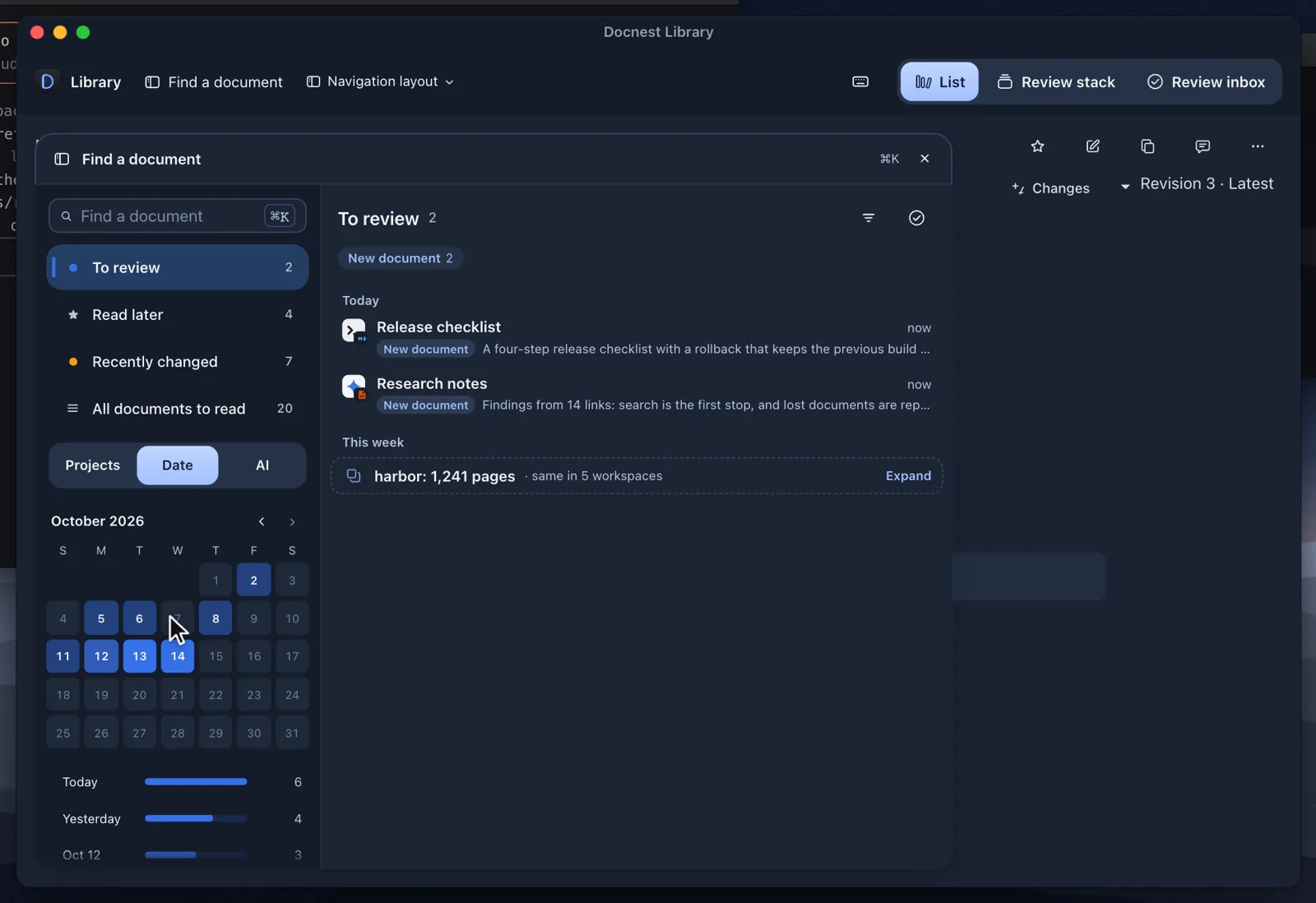
Open Find a document with ⌘K, the ☰ button, or by moving the pointer to the left edge of the window. Press ⌘F to search by title, project or model. Esc closes the panel.
At the top of the panel:
| Row | Shows |
|---|---|
| To review | New and edited documents you haven't sorted yet (the same ones as on the shelf). |
| ★ Read later | Everything you starred. |
| Recently changed | Documents edited in the current review period. |
| All documents to read | Every document except generated files. |
Below that are three tabs:
- Projects: documents grouped by project. Worktrees fold under their main project (Workspaces 2), and pages or images that scripts produced in bulk fold into Generated 40. Collections and Favorites are here too.
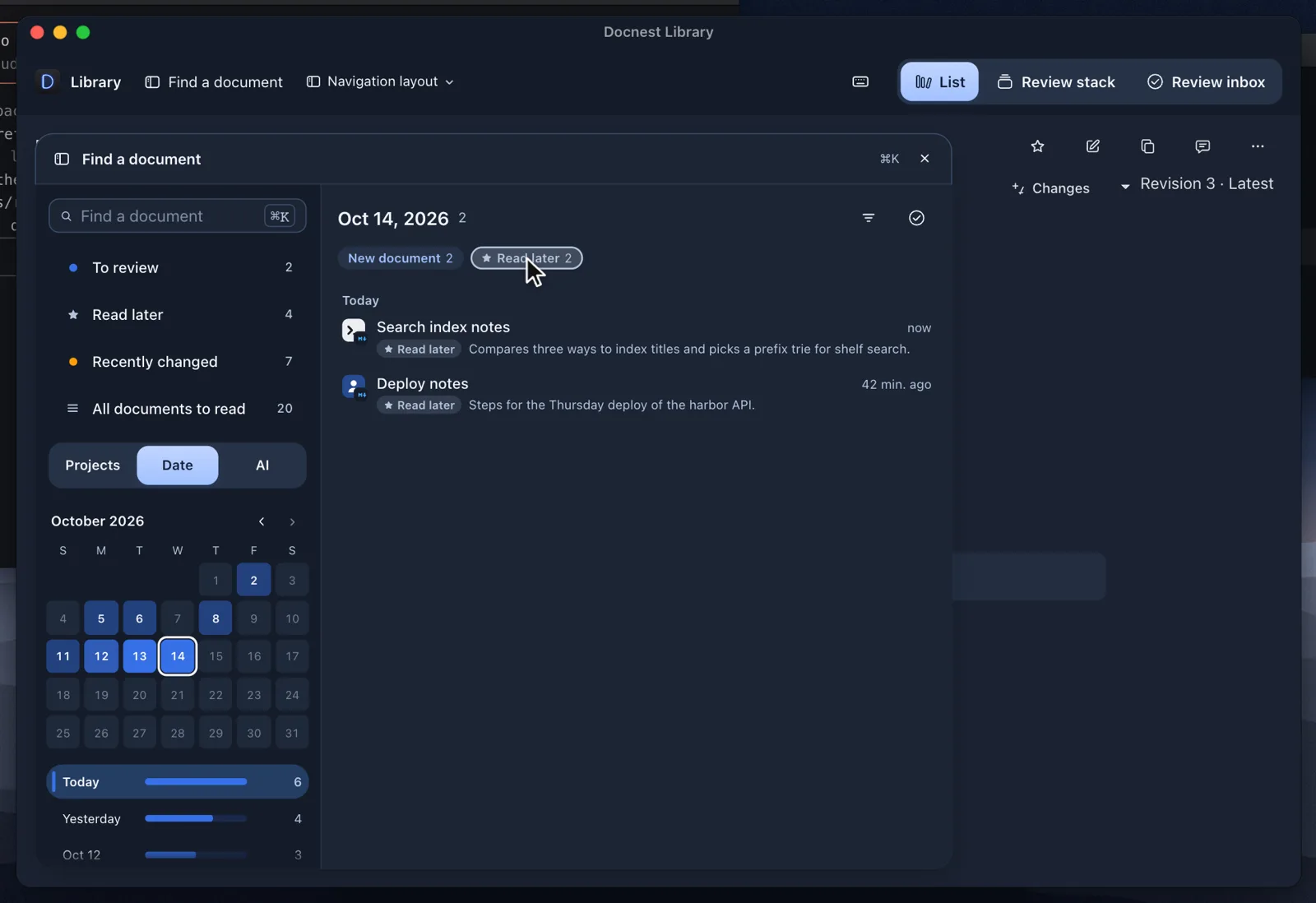
- Date: a Capture calendar. Darker days had more documents. Click a day to see what arrived.
- AI: documents grouped by the AI that wrote them, plus the ones you saved yourself and the ones with an unknown source.
Documents, conversations and review
The bar at the top of the library has three tabs:
| Tab | Key | Use it to |
|---|---|---|
| Documents | ⌘1 | Read and browse. |
| Conversations | ⌘2 | Read agent conversations. See Agent conversations. |
| Review | ⌘3 | Sort many documents at once. See Reading and review. |
Working with a document
- Changes in place. When a document has more than one version, changes appear inside it: added lines in green, removed lines in red. Previous change and Next change jump between them.
- Side by side. View together (⇧⌘C) puts the selected documents next to each other.
- Favorites. Choose Add to favorites and keep this version to save a copy of that exact version. The copy stays as it is, even if the original file changes later.
- Edit. Your edits are saved as a new version in Docnest's copy. The original file is never changed.
- Agent feedback. Add a note to a line or a range. Docnest puts a ready-made prompt on the clipboard and brings the agent's window forward. You paste and send it yourself.
Change the layout
Settings → Display → Library → Navigation layout chooses where the Find a document panel opens. The change applies to an open library right away.